Place an order
You can create orders yourself, one at a time or by importing a Shopify orders file. Orders from a connected store come in by themselves: see Store orders.
Create an order
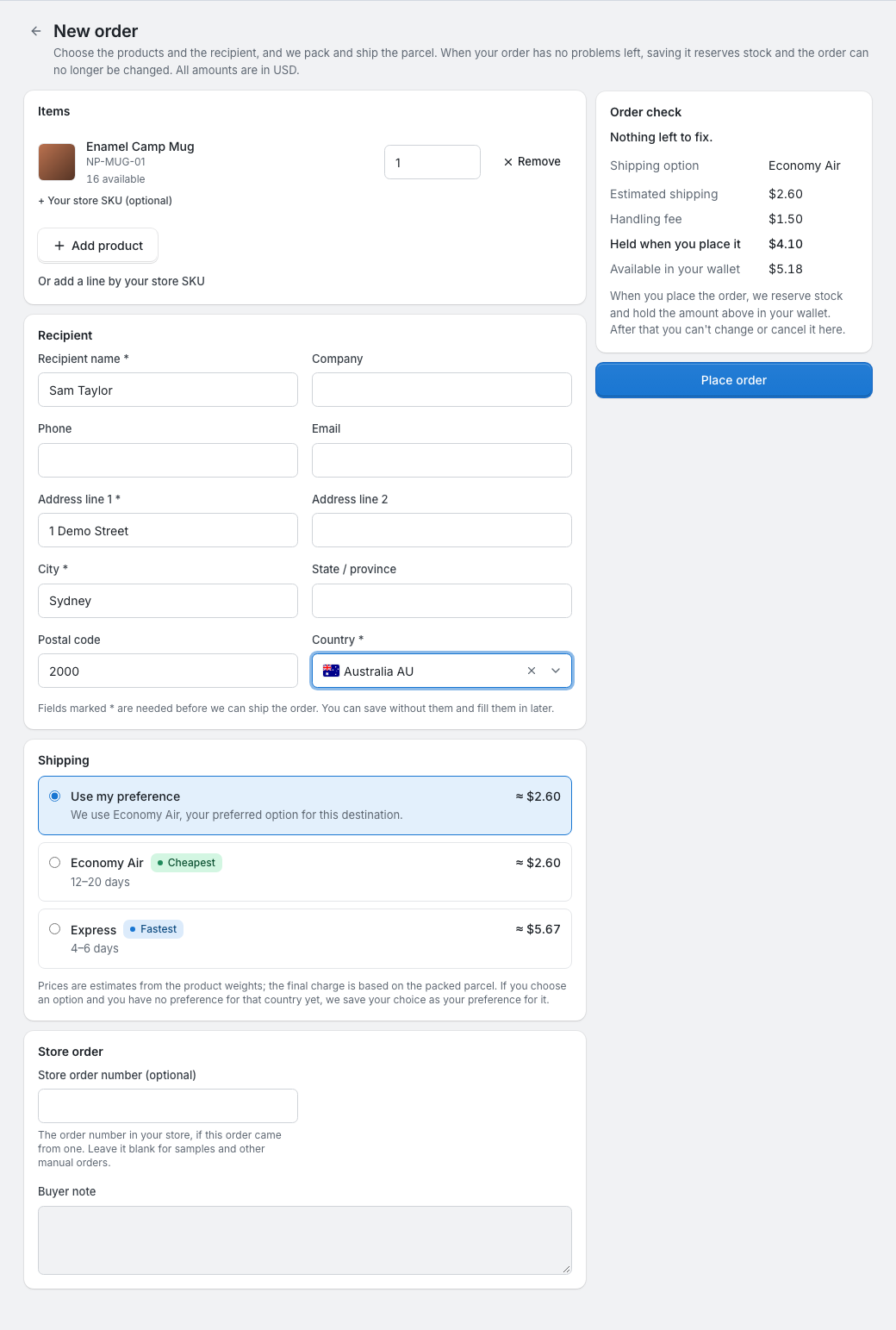
On Orders, click New order. The form has four parts, and Order check next to them checks the order as you fill it in.
Items
Click Add product and pick products from My products (My products). Each product shows how many you have available in your stock; click it again to add one more. Set the quantity on each line. An order can have up to 200 lines, with a quantity of up to 100,000 on each.
If you enter your store's SKU on a line, we remember it for that product, so later orders with that SKU match it. You can also add a line by your store's SKU only: we match it to one of your products through your SKU mappings (SKU mapping) or the product's own SKU, and if nothing matches, the order waits as SKU not mapped.
Recipient
The recipient's name, address line 1, city and country are needed before we can ship (they're marked with *). The company, phone, email, address line 2, state or province and postal code are optional, but some shipping options need the postal code. You can save the order without the needed fields and fill them in later.
Store order
If the order came from your store, enter its order number; leave it blank for samples and other orders of your own. You can't use the same store order number twice: "You already have an order with this store order number." You can also add a note from your buyer.
Shipping
Once you've chosen the country and added products, Shipping lists the options that can ship this order, each with an estimated price and delivery time; Cheapest and Fastest mark two of them. Use my preference, selected at first, uses your shipping preference for that destination. If you choose an option yourself and you have no preference for that country yet, we save your choice as your preference for it.
Prices here are estimates from your products' weights. The final charge is based on the packed parcel: see Shipping and tracking.
Save the order
The button at the bottom changes with the order check:
| Button | What happens |
|---|---|
| Save and fix later | The order still has a problem. We save it, and it waits under Needs attention until you fix it. |
| Place order | Nothing is left to fix and there's enough stock. We reserve the stock and set aside the shipping in your wallet. |
| Place order (waits for stock) | Nothing is left to fix, but some items aren't in stock. The order waits as Waiting for stock, and we reserve the stock when it arrives. |
| Save order | Shown while the order check has no result yet, for example before its first check finishes. |
Once you've placed an order, you can no longer change or cancel it yourself. If you need to, contact your account manager.
Import orders from a file
The portal imports Shopify's orders export, exactly as it comes out of Shopify. It doesn't take other spreadsheets: if you sell on WooCommerce, connect your store instead (Connect WooCommerce).
- In Shopify, open Orders, choose Export and export the orders as a CSV file. Don't change its columns.
- In the portal, on Orders, click Import orders. Under Upload your Shopify orders, choose the file and click Preview.
- Check the preview:
- SKUs to map lists the SKUs that don't match any of your products. Choose the product for each one: when you import, we save these to your SKU mappings and use them for later orders too.
- The orders in the file are listed with the status and shipping each will get.
- Skipped orders lists the orders we won't import, with the reason.
- Click the import button. It says how many orders it imports.
The file can be CSV or Excel (.csv, .xlsx or .xls), up to 8 MB and 2,000 orders. You can import 20 times a day (days follow China Standard Time). The file must have all of these columns, named as Shopify names them: Name, Lineitem quantity, Lineitem sku, Lineitem name, Shipping Name, Shipping Company, Shipping Address1, Shipping Address2, Shipping City, Shipping Province, Shipping Zip, Shipping Country, Shipping Phone, Email, Notes and Cancelled at. Rows with the same Name are one order, and that value becomes the order's store order number. If columns are missing, the portal says "Some columns of the Shopify orders export are missing. Export your orders from Shopify again and upload the file without changing its columns."
| Skipped because | Why |
|---|---|
| Already imported | You already have an order with this store order number. |
| Cancelled in your store | The order has a cancellation date in the file. |
| No order number | The row has no order number. |
| Quantity isn't a whole number | A line's quantity isn't a whole number from 1 to 100,000. |
| No items | The order has no line with a SKU or a product name. |
| Order number, SKU or item list is too long | The order number or a SKU is too long, or the order has more than 200 lines. |
Imported orders then go ahead like orders you create: those with a problem wait under Needs attention, the others reserve stock or wait for it.