Get started
Fulfillbot buys products for you, keeps them in our warehouse, and packs and ships your orders to your customers. This page takes you from a new account to your first order.
Create your account
- Open the sign-up page.
- Enter your work email and a password of at least 10 characters. Your company name, your name, your country and the other business details are optional.
- Click Create account.
If the page also shows Continue with Google, you can use your Google account instead. Google must have verified the email address.
There is no approval step: your account works as soon as it's created. What you see next depends on whether we need to verify your email:
- "Check your inbox": we've emailed you a link. Open it, click Verify my email, then sign in. The link works for 24 hours. If the email doesn't arrive, click "Didn't get it? Resend" to get a new link.
- "Your account is ready": you can sign in straight away.
Until your email is verified, signing in says "Please verify your email first. Check your inbox for the link we sent." A link that was already used or is too old shows "This link is invalid or has expired": request a new one.
Your first sign-in
The first time you sign in, a welcome page asks a few questions about your business. Everything on it is optional: click Save and continue, or Skip for now to go straight to the portal. You can fill in this page only once, and you don't see it if you already gave your company or business details when you signed up. To change your company details later, ask your account manager.
If your account manager created your account or reset your password, you get a temporary password. The first time you sign in with it, you choose your own password before you can go on.
If you started from our Shopify app, you go on to link your store after signing in. See Install the Shopify app.
The home page
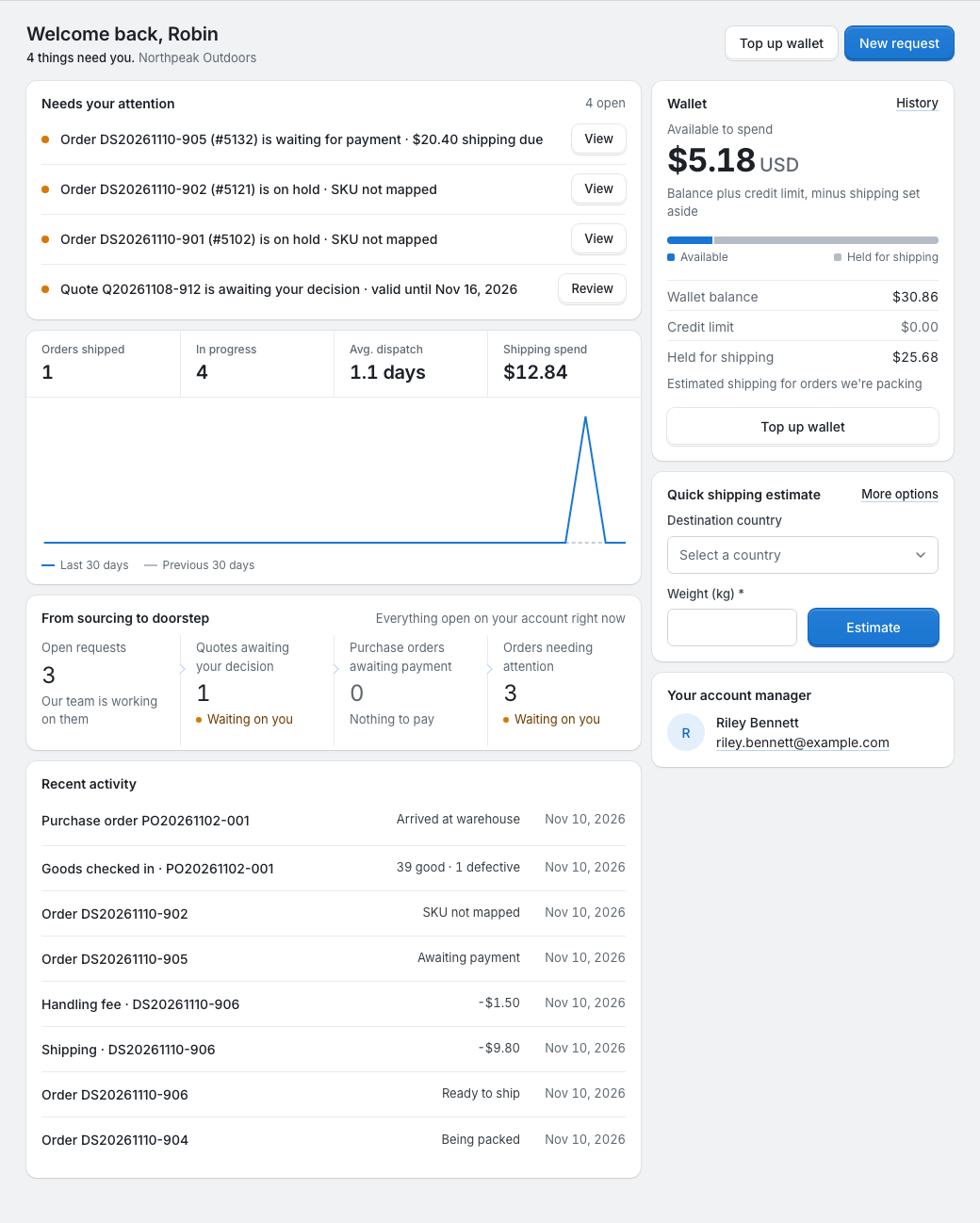
The portal opens on Home:
- Needs your attention lists everything waiting for you: orders to fix, orders waiting for payment, quotes to review, unpaid purchase orders and more. The same list is in the To do tab of the bell at the top. See Your account.
- The wallet card shows what you can spend, with Top up wallet. See Your wallet.
- Below that are how your recent orders shipped, how far your requests, quotes, purchase orders and orders have got, and your recent activity.
- On the side are a quick shipping estimate and your account manager's contact details.
Your first steps
- Top up your wallet. Purchase orders, shipping and handling are paid from it. See Top up your wallet.
- Get your products into My products. You can only order products that are in My products: products you found with Search and added, and products from quotes you accepted after a request under Requests. See How sourcing works.
- Set your shipping preferences, so each order gets the shipping option you want for its destination. See Your account.
- Choose how orders reach us: connect your Shopify or WooCommerce store (Connect your store), or create orders yourself or import them from a Shopify file (Place an order).
- Follow your orders under Orders. See Dropship orders.
If you get stuck, contact your account manager.