Search and the cart
Search finds products from our suppliers in China. You choose options and quantities, put them in your cart, and order them in one go. Your order becomes a purchase order that you pay from your wallet.
Search for products
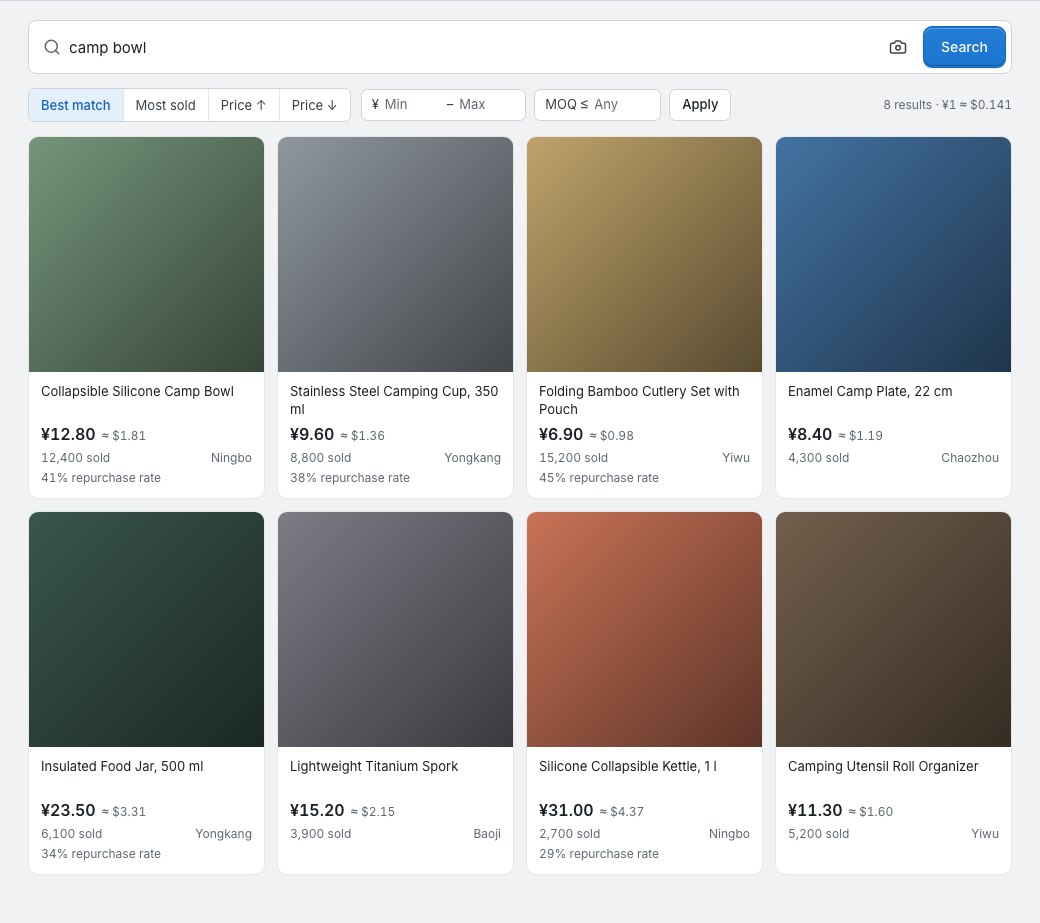
Type what you're looking for in the box on the Search page, or in the search box at the top of every page, and press Enter. You can search in English or in Chinese. If you have a link to a product of one of our suppliers, paste it into the box to open that product directly; a link we don't recognise is searched as words.
Each result shows the product's photo, title and price, how many have sold and where it ships from, and for some products how often buyers ordered again. Sort the results by Best match, Most sold or price. To filter by a price range, or by the smallest quantity the supplier sells, fill in the fields and click Apply. Load more at the bottom shows more results.
Titles and options are translated automatically, so the wording can be rough, and some text, for example inside product photos, may still be in Chinese.
If searching isn't possible at the moment, the page says "Search isn't available right now. Please try again in a few minutes." If you search a lot in a short time, it says "You've searched a lot in a short time. Please wait a little and try again." Opening products and your cart counts too.
Search by image
On the Search page, click the camera button (Search by image) and choose or drop a photo under Search with a photo, or paste an image anywhere on the page. The photo can be a JPG, PNG or WebP file of up to 5 MB. Results start sorted by Most similar, and the filters aren't available.
You can search with up to 50 images a day (days follow China Standard Time). Find by image on your store's products counts towards this too: see Link your store products. When you reach the limit, the upload says "You've reached today's upload limit. Please try again tomorrow."
The product page
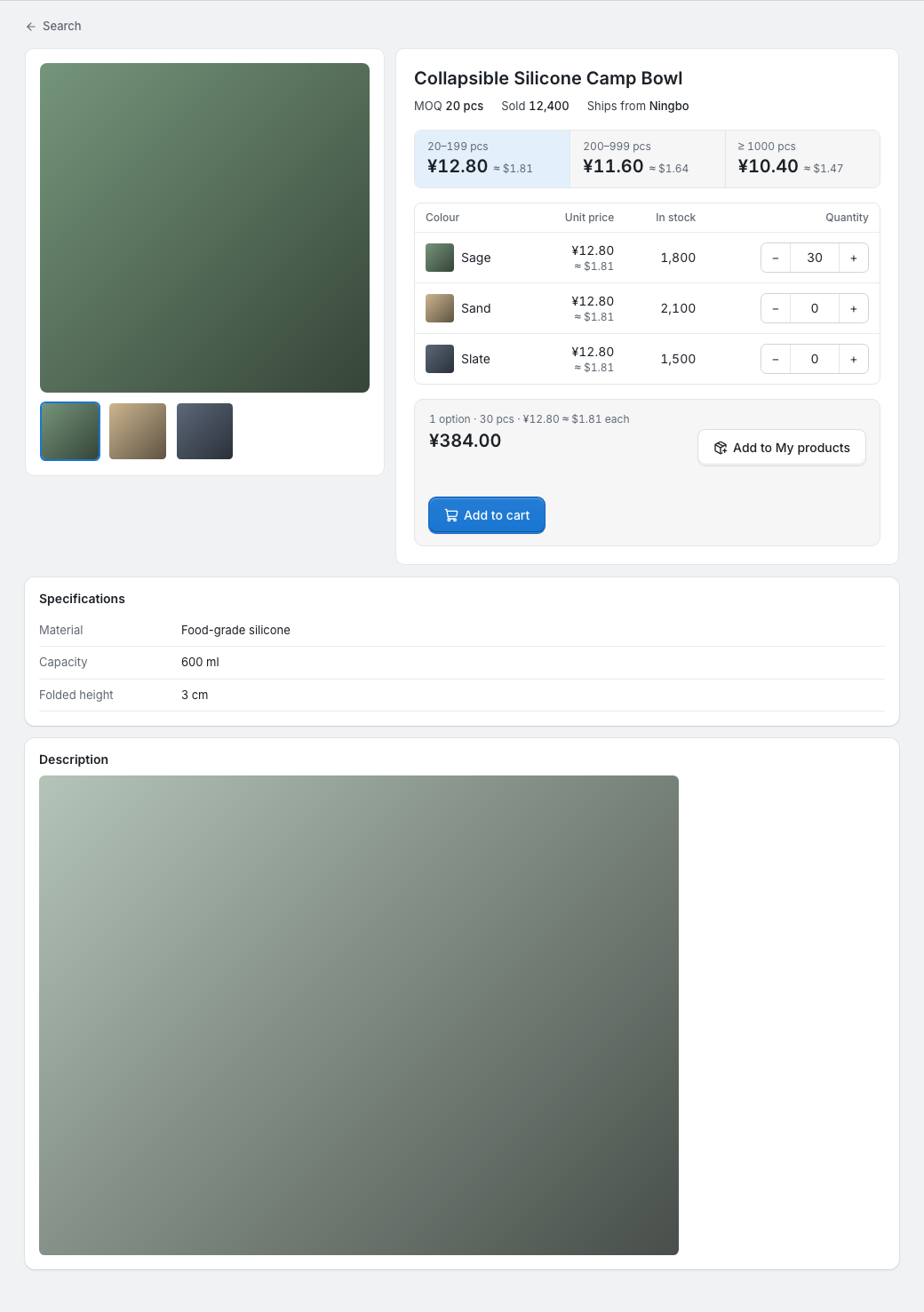
Click a result to open the product. The page shows its photos, specifications and description, where it ships from, how many have sold, and the smallest total quantity the supplier sells.
If the price depends on the quantity, a strip shows the price for each quantity range. The range is set by your total quantity across all the options you choose, and that price applies to each of them.
Enter a quantity for each option you want in the table. Each row shows the option's unit price, with an approximate value in US dollars, and how many the supplier has in stock, from the latest information we have. The bar at the bottom adds up your options and pieces, and shows the total in Chinese yuan and an approximate US dollar total that includes our service fee. Shipping from the supplier to our warehouse is worked out in your cart.
- Add to cart puts these quantities in your cart. It works once your total for the product reaches the supplier's smallest quantity. If an option is already in your cart, its quantity goes up.
- Add to My products adds the options you tick to My products without ordering them, so you can add your own SKUs, link your store products or turn on auto purchase. You can add up to 50 options at a time. Once every option is in My products, the button reads In My products.
Prices
Prices on Search are our suppliers' prices in Chinese yuan (RMB). The approximate US dollar values (≈) use our current exchange rate and are rounded up; the results page shows the rate. When you order, we add each supplier's shipping to our warehouse and our service fee, and the exchange rate is fixed on the purchase order.
International shipping from our warehouse isn't included. It's charged later, when the goods leave: with each dropship order, or with a shipment of your stock.
The cart
The Cart button at the top of every page shows what's in your cart. View cart opens the cart page, and Checkout opens it at the order summary.
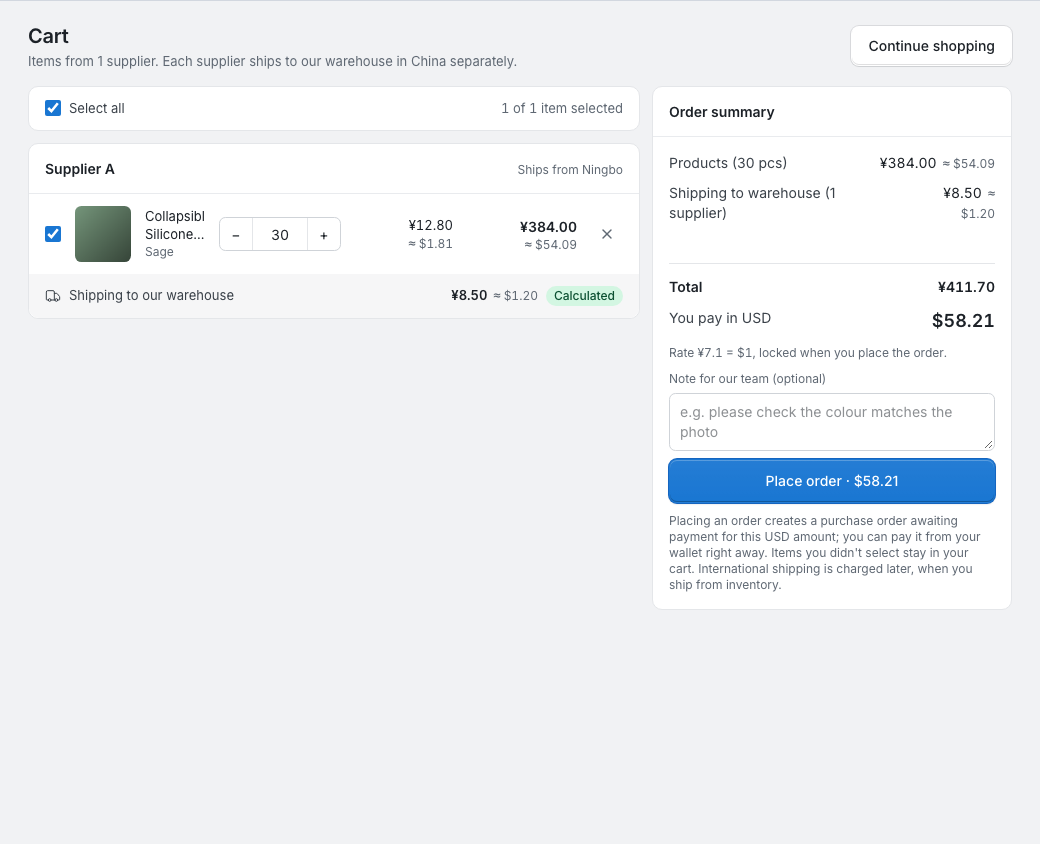
The cart groups items by supplier. Suppliers are named Supplier A, Supplier B and so on, with the city they ship from. Each supplier ships to our warehouse separately, so each has its own Shipping to our warehouse, marked:
- Calculated: worked out from the supplier's shipping rates;
- Estimate: we couldn't get the supplier's rate for all of these items, so a standard amount is included.
Tick the items you want to order, or Select all. Items you don't tick stay in your cart and don't count towards the total. Change a quantity or remove an item on its row; a quantity of zero removes it.
Each time you open the cart, we check every item against the latest information we have. A row tells you if its price went up or down since you added it, if the supplier has fewer in stock than you want, or if it's no longer available.
Your cart holds up to 100 options from up to 20 different products, with a quantity of up to 100,000 on each. When it's full, adding says "Your cart is full. Remove some items before adding more." Items stay in your cart until you order or remove them.
Order from the cart
- Tick the items to order. The Order summary shows the products, the shipping to our warehouse for the suppliers of the ticked items, our service fee, the total in Chinese yuan and You pay in USD: the amount of your purchase order.
- If you want, write a Note for our team (optional), for example about colours or packing.
- Click Place order. The button shows the amount in US dollars.
"Placing an order creates a purchase order awaiting payment for this USD amount; you can pay it from your wallet right away." All the ticked items, from every supplier, go into one purchase order, and they leave your cart.
You can't order while a ticked item needs attention (it's no longer available, the supplier has too few in stock, or the product is below the supplier's smallest quantity): fix it or untick it. If prices, shipping or the exchange rate changed since you opened the cart, the order isn't placed and the cart says "Prices, shipping or stock changed since you opened your cart. We've updated it. Check the new total and place the order again."
After you order
You go straight to the new purchase order. It's marked Placed via Search and says "Order placed. Pay below and we'll start buying from the suppliers."
Nothing is charged until you pay. Pay from your wallet under Pay from your wallet and confirm with Confirm payment, or pay as shown under How to pay. A purchase order from the cart has no payment deadline. See Purchase orders.
The products you ordered are added to My products. After you've paid, we buy from the suppliers, the goods come to our warehouse, and we check them in to your stock. Follow it on the purchase order: see Purchase orders.
If your account is on hold, you can still search, but adding to the cart and ordering say "Your account is on hold. Please contact your account manager."