Connect WooCommerce
Connect a WooCommerce store from the Stores page in the portal. You can approve the connection in WooCommerce with one click, or create API keys in WordPress and paste them in.
Before you start
- Your store's address starts with https:// and the store can be reached from the internet.
- No security plugin or firewall blocks WooCommerce's REST API.
- You can sign in to WordPress as an administrator, to approve the connection or create API keys.
Connect the store
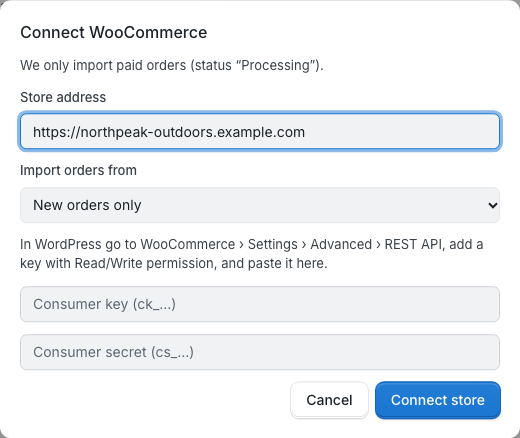
- In the portal, open Stores and click Connect WooCommerce.
- Enter your Store address: the address of your shop's home page.
- Choose Import orders from: New orders only, Last 24 hours, Last 7 days or Last 30 days. Orders created before that are never imported.
- Approve the connection in WooCommerce (one-click authorization), or click Enter API keys manually and use API keys.
The dialog says "We only import paid orders (status “Processing”)." Orders that are still waiting for payment, for example Pending payment or On hold, come in once WooCommerce moves them to Processing.
One-click authorization
Click Authorize in WooCommerce. Your store's WordPress opens: sign in if asked, check that the request comes from Fulfillbot for your company name, and approve it with Read/Write access. WooCommerce brings you back to the Stores page, which waits for the connection to finish and then says "Your store is connected. New paid orders will come in automatically."
Approve the request within 30 minutes, otherwise the connection fails: start again from Connect WooCommerce.
If the dialog asks for API keys straight away, one-click authorization isn't available right now: use API keys.
API keys
- In WordPress, go to WooCommerce › Settings › Advanced › REST API and add a key.
- Choose an administrator as the key's user and set the permissions to Read/Write. Generate the key.
- Copy the consumer key (it starts with ck_) and the consumer secret (it starts with cs_). WooCommerce shows the secret only once.
- In the portal dialog, paste them into Consumer key and Consumer secret, and click Connect store.
The portal says "Connected. We're importing your paid orders now — refresh in a minute." Read-only keys are refused: the key needs Read/Write permission because we add tracking to your orders and mark them Completed.
Real-time updates
With real-time updates, your store tells us about new and changed orders as they happen, through webhooks that we add to your store when you connect. If your dialog offers Authorize in WooCommerce, you can get real-time updates. Adding the webhooks can fail, though; the next section says what to do then. The store's card shows when the last real-time update arrived.
Without real-time updates
If the card says Real-time updates off — use Sync now, new orders, cancellations and address changes only reach us when you click Sync now on the store's card. There is no automatic sync on a timer, so click Sync now whenever you want to bring orders in.
Sync now also helps when real-time updates are on:
- it fetches anything a real-time update missed;
- it checks the webhooks in your store, and turns them back on or adds them again if WooCommerce turned them off or they were deleted;
- it checks again which tracking plugin your store uses.
One click imports one batch of orders. If there are more, the result says "There are more orders — click Sync now again to continue." You can start a sync of the same store up to 2 times a minute.
Tracking sent back to WooCommerce
When we ship an order, we add the carrier and tracking number to the WooCommerce order, then mark it Completed:
- with the WooCommerce Shipment Tracking extension, if it's installed;
- otherwise with the Advanced Shipment Tracking plugin, if it's installed;
- otherwise as an order note your customer can see. It starts with "Your order has shipped." and lists the carrier, the tracking number and, when there is one, the tracking link.
An order that is already Completed, Cancelled or Refunded in WooCommerce keeps its status. Your WooCommerce email settings decide whether your customer gets an email when the order is completed or the note is added.