Purchase orders
A purchase order is what we buy for you from our suppliers, and what you pay for it. Purchase orders come from your cart on Search, from quotes you accepted and from reorders, from auto purchase, and from our team when your orders wait for stock. You find them all under Purchase orders.
The Purchase orders page
Your purchase orders shows a card for each purchase order: its number, date and status, the amount payable, paid and due, and its first products with how many are in our warehouse. Pay now opens a purchase order with an amount due; otherwise View order opens it. You can search by product name, SKU or order number.
The tabs:
| Tab | Purchase orders |
|---|---|
| All | Every purchase order. |
| Awaiting payment | Not paid in full, and we haven't started buying yet. |
| In progress | Paid and waiting to be bought, Purchasing, or On the way to warehouse or Arrived at warehouse. If an amount is still due, the card shows Pay now. |
| Completed | Everything is checked in or settled. Some may still have an amount due. |
| Cancelled | Cancelled purchase orders. |
Statuses
| Status | What it means |
|---|---|
| Awaiting payment | Nothing is paid yet, and we haven't started buying. |
| Deposit received | Part is paid, for example a deposit agreed with your account manager, and we haven't started buying. |
| Paid | Paid in full. We're about to order from the suppliers. |
| Purchasing | We're ordering the goods from the suppliers. |
| On the way to warehouse | The suppliers have shipped the goods to our warehouse. |
| Partially arrived | Some of the deliveries have arrived. |
| Arrived at warehouse | All deliveries have arrived. If something was short or defective, we sort it out with you. |
| In stock | Everything is checked in or settled, but an amount is still due. |
| Completed | Everything is checked in or settled, and paid. |
| Cancelled | We cancelled it. |
From Purchasing on, the statuses show how far the purchase order has got, not whether it's paid: we can start buying before it's paid in full, for example after a deposit. Check Amount due on the purchase order to see what's still to pay.
Our team moves a purchase order along as the work happens; apart from paying, you don't need to do anything.
Pay a purchase order
The Payment card on the purchase order shows the order total, what you've paid and the Amount due.
To pay from your wallet, use Pay from your wallet at the top of the purchase order: click the pay button, then Confirm payment. "Pays the full amount due. Your available balance includes any credit limit on your account." You can't pay part of the amount from your wallet. If your wallet doesn't have enough, the card says how much to top up, with Go to wallet. The payment shows in Wallet activity as Goods payment.
To pay another way, follow How to pay under Payment. When we receive your payment, we add it to the purchase order. If you've agreed a deposit with your account manager, the purchase order shows Deposit received until the rest is paid.
Some purchase orders are paid from your wallet without you doing anything:
- purchase orders our team creates for your orders that are Waiting for stock are paid when we create them;
- purchase orders from auto purchase are paid when we create them if Available to spend covers them, or otherwise when a top-up is credited. If one isn't paid by its due date, we cancel it and pause auto purchase. See Auto purchase.
Purchase orders from your cart, from quotes and from reorders aren't paid automatically, and they have no payment deadline.
Download PI downloads a proforma invoice of the purchase order as a PDF.
While your account is on hold, paying from your wallet says "Your account is on hold. Please contact your account manager."
Charges for orders from the cart
A purchase order placed from your cart also has a Charges card: the products, each supplier's shipping to our warehouse (marked as an estimate where we used a standard amount) and our service fee. If goods turn out short, only the products are refunded; the service fee and the shipping to our warehouse are not.
Arrival and short deliveries
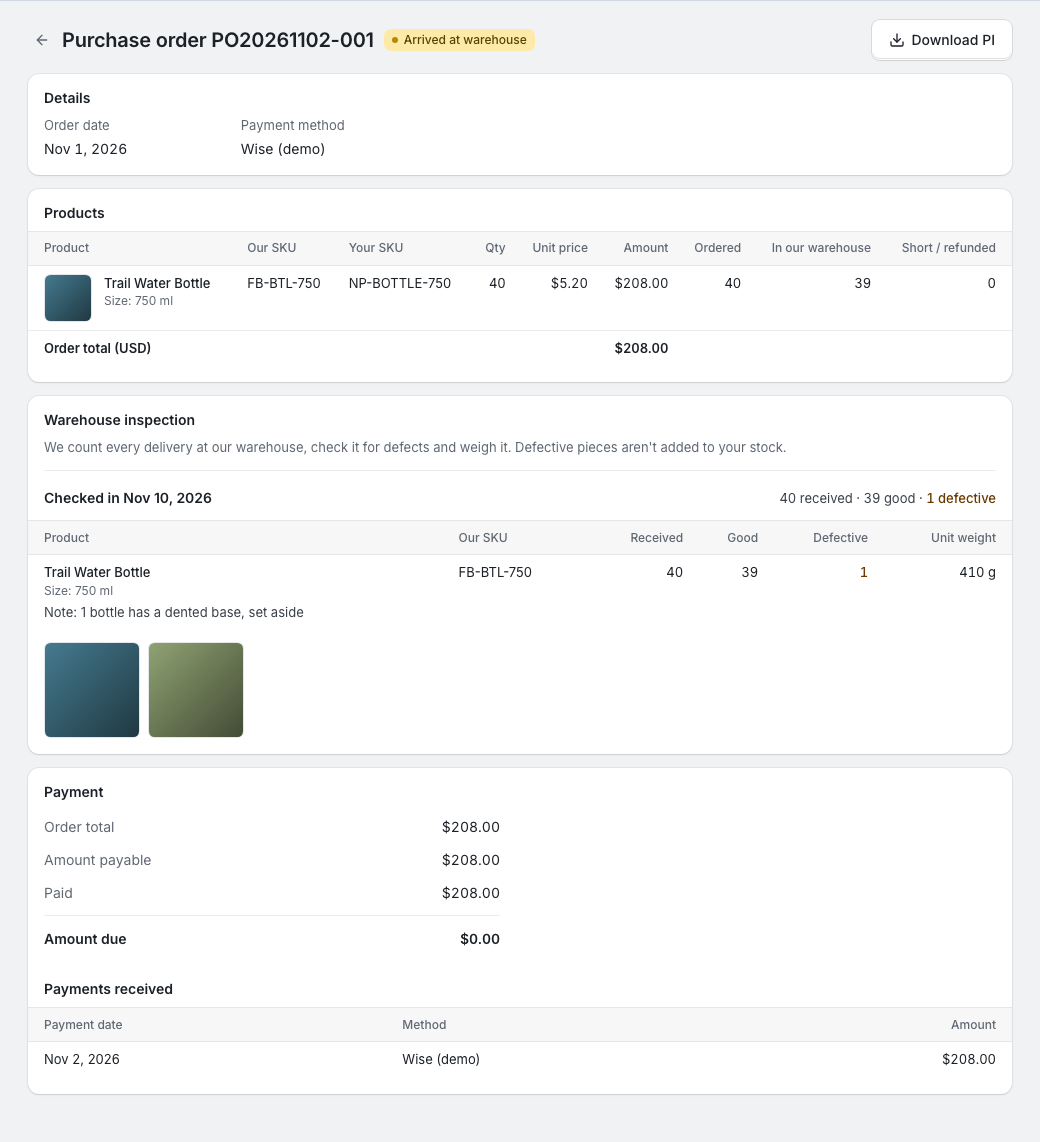
The products table shows, for each product, how many we've Ordered from the supplier, how many good pieces are In our warehouse, and how many are Short / refunded. Deliveries can arrive in parts, and the purchase order is Partially arrived until all of them are in.
If a supplier sends fewer pieces than ordered, or some are defective, our team agrees with you what to do: wait for the rest, refund the missing pieces, or accept fewer. Pieces you accept as short or that we refund lower the amount payable.
Warehouse inspection
"We count every delivery at our warehouse, check it for defects and weigh it. Defective pieces aren't added to your stock."
The Warehouse inspection card shows each check-in: the date, how many pieces were received, good and defective, the unit weight of each product, any note from us, and photos. Click a photo to see it larger, and use the arrow keys to move between photos. The card appears as soon as we've checked a delivery in, and you get a notification, also when we find defective or missing pieces.
The good pieces go into your stock straight away (see Inventory), and orders waiting for that stock get it reserved automatically.
Refunds and cancelling
You can't cancel a purchase order in the portal. If you need one cancelled, contact your account manager.
When we refund a purchase order, for a cancelled order or for short-shipped goods, the money goes back to your wallet. It shows in Wallet activity as Goods refund, and on the purchase order under Refunded to your wallet as Refund for cancelled order or Refund for short-shipped items. Our team makes these refunds; they aren't automatic.