Link your store products
Linking tells us which of your products to ship for each product in your store. A store order line whose variant is linked matches automatically. A line that isn't linked can still match by SKU; if neither works, the order waits for you as SKU not mapped.
Sync your store's products
On the Stores page, click Sync products on the store's card. We read your store's products and variants and list them in the portal. Large stores take several rounds; the button keeps going by itself and shows its progress. If it stops before the end, it says "Still syncing — click Sync products again to continue." and the button reads Continue syncing products.
Products don't sync on their own. When you add products to your store, click Sync products again. After a full sync, variants that are no longer in your store leave Not linked and Not fulfilled by us; a linked one stays in Linked, labelled Removed from store.
Then click Manage products to open the store's products.
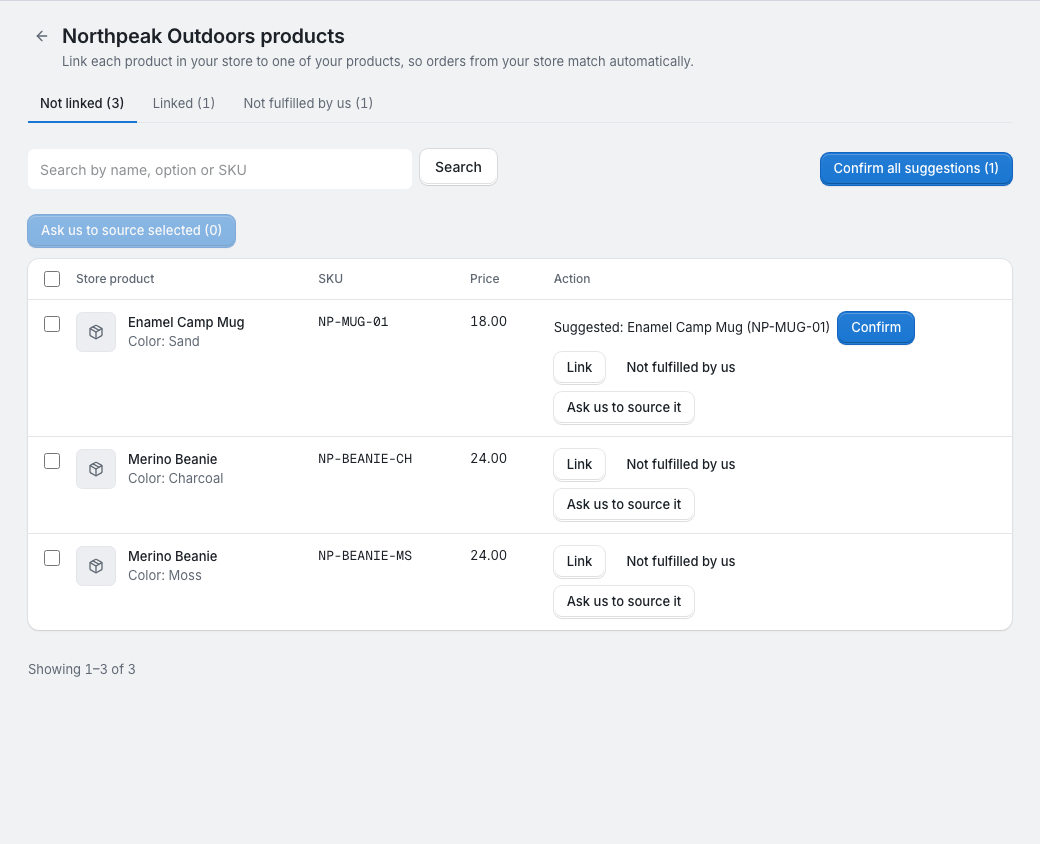
The three lists
- Not linked: variants that still need a decision. Start here.
- Linked: variants linked to one of your products. Unlink removes the link; orders that already matched keep their product.
- Not fulfilled by us: variants you told us we don't ship. Restore puts a variant back in Not linked.
You can search all three by product name, option or SKU.
Link a variant
For each variant in Not linked:
- If one of your products in My products has the same SKU, the row suggests it. Click Confirm. Confirm all suggestions links every suggested variant at once.
- Otherwise click Link and pick one of your products. You can only pick products that are in My products.
Variants of one store product that share a single SKU get no suggestion, so that different options aren't all linked to the same product. Link those one by one.
When you link a variant, orders that were waiting as SKU not mapped because of it are updated straight away; the message tells you how many. If a linked product is later removed from My products, the row says "Not in My products — orders won't use this link."
Not fulfilled by us
Use Not fulfilled by us for store products we don't ship for you, such as gift wrapping. It only tidies the list: it doesn't change how orders come in. A store order that contains such a product still comes in, and that line shows as SKU not mapped unless its SKU matches one of your products. Edit the order to remove the line, or cancel the order if we shouldn't ship any of it.
Find or source a product you don't have yet
If none of your products match yet:
- Find by image opens Search with the store product's image, so you can find a matching product and add it to My products. It's there when the variant has an image, and it counts towards your daily image searches. See Search and the cart.
- Ask us to source it opens a sourcing request, filled in with the product's name, link and image. To ask for several at once, tick their rows and click Ask us to source selected; one request takes up to 20 variants. See Sourcing and reorder requests.
While the request is open, the row shows the request number. Once you accept our quote, the row lists the quoted products that are in My products, each with a Link button, so you can link the variant straight away.
How store order lines find a product
For each line of a store order we try, in this order:
- the variant's link, from this page;
- the line's SKU: a SKU you added to one of your products in My products, our own SKU of a product in My products, or your SKU on your agreed price list.
If nothing matches, the line is SKU not mapped and the order waits in Orders until you fix it. See Store orders.