My products
My products lists the products you can put in your dropship orders: products you added from Search, products you ordered from your cart, and products from quotes you accepted.
The My products page
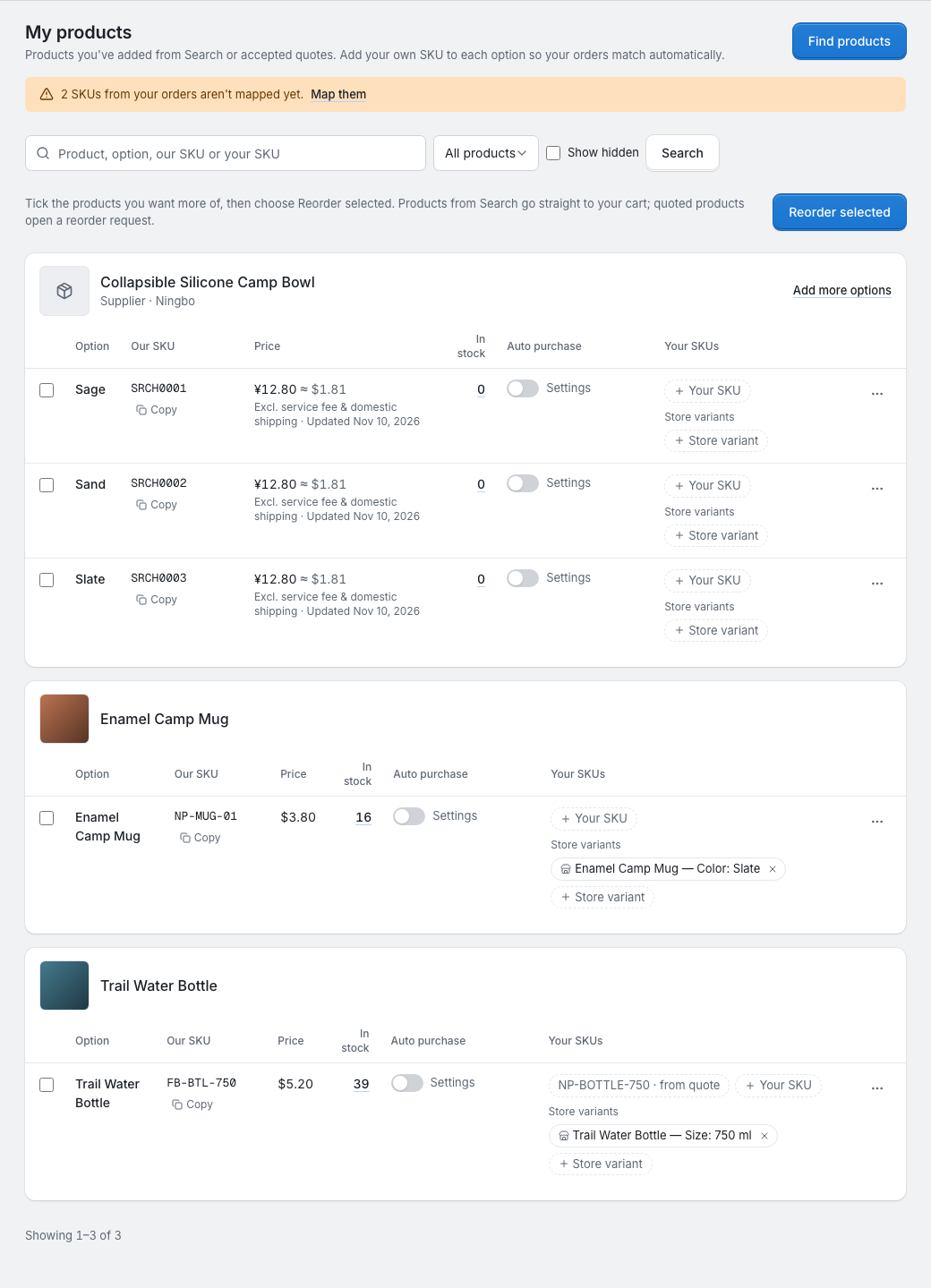
Products from Search are grouped by product: the card shows the product's title and the city its supplier ships from, with a row for each option you have, such as a colour or size. Add more options opens the product on Search. Each product from a quote has its own card. The newest products come first.
Each row shows:
| Column | What it shows |
|---|---|
| Our SKU | Our code for the product, with a button to copy it. |
| Price | Your agreed price, or a reference price. See below. |
| In stock | How many you have available in our warehouse; it links to Inventory. If we don't know the product's weight yet, it says "Weight to be confirmed". |
| Auto purchase | Whether auto purchase buys this product. See Auto purchase. |
| Your SKUs | Your own SKUs for this product. See SKU mapping. |
If you've connected a store, a row also shows the store variants linked to it, and Store variant links another one. See Link your store products.
You can search by product, option, our SKU or your SKU, filter to All products, Has your SKU or No SKU yet, and tick Show hidden to include hidden products.
When SKUs from your orders don't match any of your products, the page says how many, and Map them opens SKUs to map on the Orders page.
Prices
- An agreed price, in US dollars, comes from a quote you accepted. It's the price for reorders and for auto purchase.
- A product from Search without an agreed price shows a reference price: the supplier's price in Chinese yuan with an approximate value in US dollars, without our service fee and the supplier's shipping to our warehouse, and the day we last checked it. What you pay is worked out when you order it from your cart.
- A row with neither shows a dash.
Hide or remove a product
The menu at the end of each row has Hide, or Unhide for a hidden product. Hidden products, marked Hidden, leave the list (tick Show hidden to see them) and the product list of the new order form, but your SKUs and store links still match them in orders. A hidden product comes back when you add it again from Search.
Products from Search can also be removed from the same menu. You can't remove a product while you have stock of it, while it's on an open purchase order or on orders that haven't shipped, or if it comes from your quotes; the dialog then lets you hide it instead. Removing a product also removes your SKUs on it.
A product we no longer offer is marked Not available, with the reason. You can't order it or add SKUs to it.
Buy again
Tick the rows you want more of and click Reorder selected:
- products from Search go into your cart, ticked, with at least the supplier's smallest quantity. Finish in the cart: see Search and the cart;
- products with an agreed price open a reorder request with those products: see Sourcing and reorder requests.
If some of them are no longer available, the page says so.
Product images
Each row shows the option's photo, or the product's photo. Products without a photo show a placeholder.