Sourcing and reorder requests
A request asks us to do something for you: find suppliers for new products (a sourcing request), or buy more of products you already have agreed prices for (a reorder). Your requests are under Requests; start one with New request.
Sourcing request
Use a sourcing request for products you can't find on Search, or when you'd rather we found the supplier.
- On Requests, click New request, then Start a sourcing request under Source new products.
- Fill in the request details:
- Destination country: where the goods go in the end.
- What are the goods for?: Dropshipping stock, Ship to me or Amazon FBA.
- Needed by and Notes, if you want.
- For each product, enter the Product name and the Quantity, and give us either a Product link (from any website) or photos under Photos. You can also describe the specifications, such as colour, size, material or packaging, and add a Target unit price (USD) if you have one in mind.
- Click Add another product for each further product, then Submit request.
Limits:
- up to 20 products in one request, with a quantity of up to 1,000,000 each, and product names of up to 200 characters;
- up to 5 photos for each product, as JPG, PNG or WebP files of up to 5 MB each;
- up to 100 photo uploads a day (days follow China Standard Time).
You can also start a sourcing request from Ask us to source it on your store's products (Link your store products), on SKUs to map in Orders, and on Needs your decision (Product decisions). The form is then filled in for you.
Request statuses
| Status | What it means |
|---|---|
| Submitted | We've received your request. You can still withdraw it. |
| In progress | Our team is working on it. Your account manager may write to you on the request, under Message from your account manager. |
| Quoted | Your quote is ready: the request shows Your quote is ready, and Review quote opens it. See Quotes. |
| Completed | You accepted the quote, or, for a reorder, we've created the purchase order. |
| Cancelled | You withdrew the request, or we cancelled it and the request shows why. |
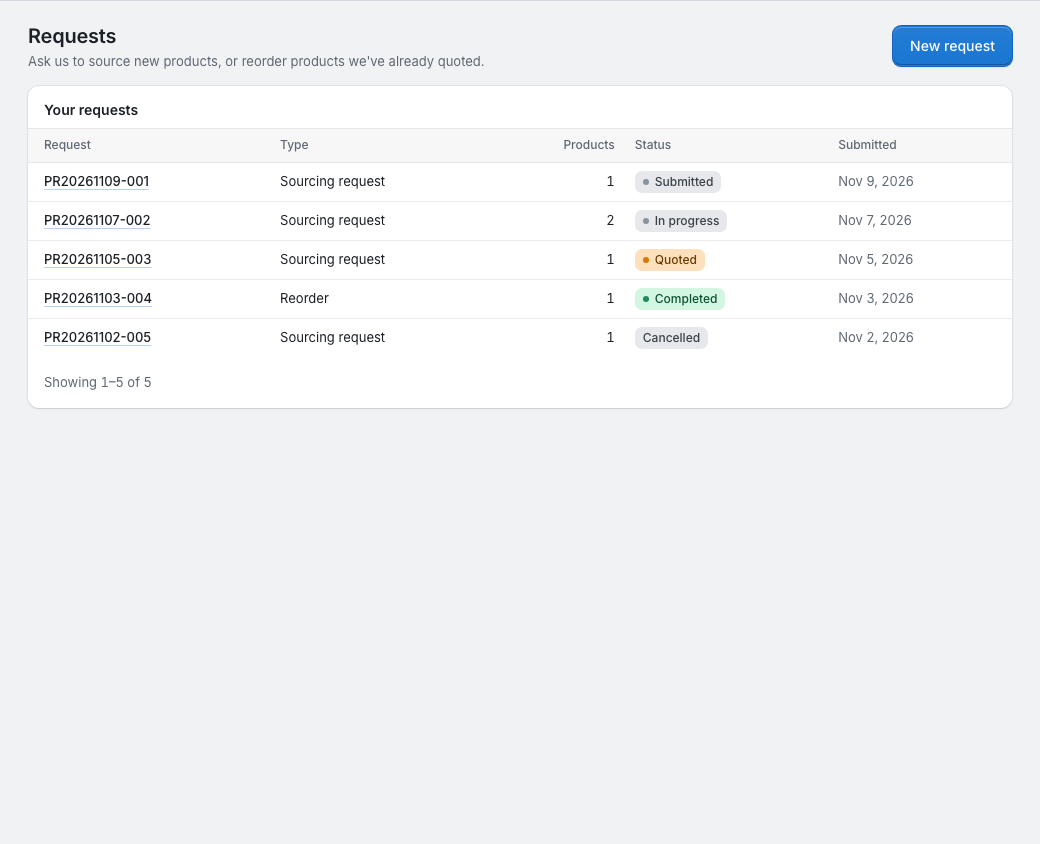
When you decline a quote, or it expires before you decide, the request goes back to In progress. When we send a quote, you get a notification. If we cancel a request, it stays on your To do list for 30 days.
Reorder request
A reorder buys more of products you have agreed prices for: the prices of quotes you accepted.
- On Requests, click New request, then Start a reorder under Reorder my products. You can also tick products in My products and click Reorder selected (see My products).
- Enter the quantity you need of each product. The table shows each product's agreed unit price, how many you have in our warehouse, and the subtotal.
- Choose What are the goods for?, add notes if you want, and click Submit reorder.
A reorder can have up to 20 products. Products from Search without an agreed price aren't listed: add them to your cart from Search or from My products instead.
There's no quote for a reorder. Your account manager creates a purchase order at your agreed prices, and the request becomes Completed and links to it. Pay it as described in Purchase orders.
Withdraw a request
"Changed your mind? You can withdraw this request until we start working on it." While a request is Submitted, open it and click Withdraw request; it becomes Cancelled.
Once we've started on it, the portal says "This request is already being handled, so it can't be withdrawn. Please contact your account manager." In that case, contact your account manager.
While your account is on hold, you can't send new requests.